 05 September 2026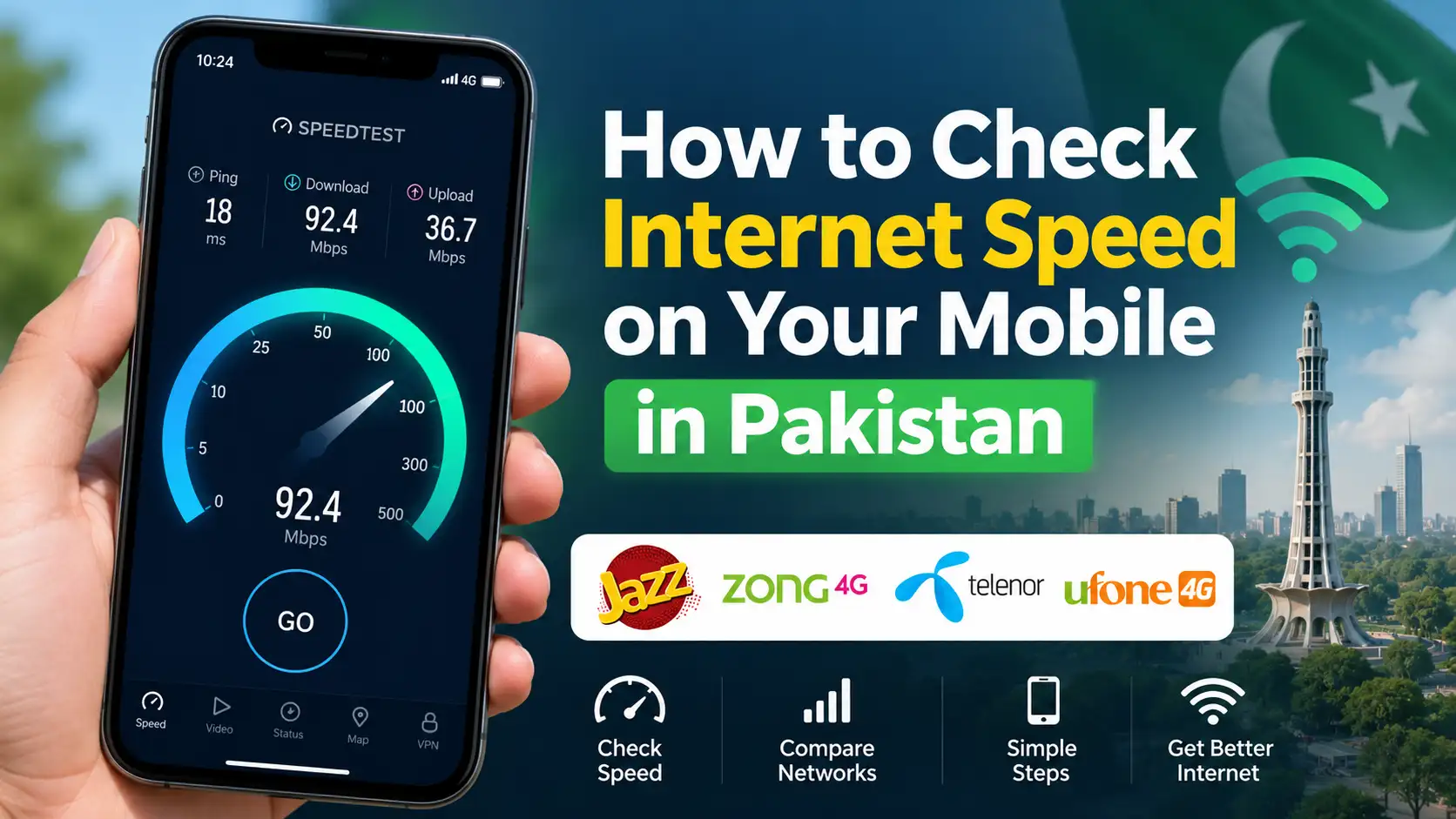
You know that feeling when a video just won't load, or a page keeps spinning no matter how many times you refresh, and you're left wondering whether it's your phone, your network, or just bad luck. Checking your actual internet speed clears that up in under a minute, and it works whether you're on mobile data or connected to WiFi. Here's a complete rundown of how to do it properly, along with what the numbers you get actually mean.
The Most Reliable Way: Speedtest by Ookla
This is the app most people default to, and for good reason, it's fast, accurate, and works consistently across every major network in Pakistan, whether you're on Jazz, Zong, Telenor, Ufone, or a home WiFi connection.
Here's how to use it:
- Download the Speedtest app by Ookla from the Google Play Store or Apple App Store
- Open the app and tap the large Go button in the middle of the screen
- The app will automatically connect to the nearest available server and run the test
- Within about 15 to 30 seconds, you'll see your results: download speed, upload speed, and ping (latency), all measured in Mbps for speed and milliseconds for ping
If you'd rather not install anything, the same test is available directly at speedtest.net through your phone's browser, and it works just as reliably for a quick check.
Alternative Option: Fast.com
If you mainly care about how well your connection handles streaming, Netflix's own speed test tool at fast.com is worth knowing about too. It's stripped down compared to Speedtest, showing mostly just your download speed by default, but it loads instantly without needing an app, and expanding the additional details on the page also shows your upload speed and latency if you tap to reveal them.
What the Numbers Actually Mean
Once you run a test, it helps to actually understand what you're looking at rather than just noting whether the number feels high or low.
Download speed tells you how fast data comes to your phone, this is what affects browsing, streaming, downloading files, and loading social media feeds. For comfortable HD video streaming, you generally want at least 5 Mbps, and for smoother 4K or multiple devices sharing the connection, 25 Mbps or higher is a more realistic baseline.
Upload speed tells you how fast data leaves your phone, which matters for things like video calls, uploading photos or videos, and live streaming. This number is often noticeably lower than your download speed on mobile networks, and that's completely normal, most connections aren't designed to be symmetrical.
Ping (latency) measures how long it takes for a signal to travel to a server and back, in milliseconds. Lower is better here. Anything under 50ms feels essentially instant for browsing and most everyday use, while higher ping becomes noticeable mainly in situations like online gaming or video calls, where even a small delay is easy to feel.
Checking Speed on Mobile Data vs WiFi
It's worth testing both separately if you're trying to figure out where a slowdown is actually coming from. Turn off WiFi and run the test purely on your mobile data connection first, then reconnect to WiFi and run it again. If your mobile data speed looks fine but WiFi feels slow, the issue is likely with your router or ISP rather than your cellular network, and vice versa. Comparing the two results side by side is often the fastest way to isolate where a problem is actually coming from before you call your provider to complain about something that might not even be their fault.
Getting an Accurate Reading
A few small things can throw off your results if you're not careful. Running a speed test while other apps are actively downloading or streaming in the background will drag your numbers down, so it's worth closing anything data heavy first. Testing in a spot with strong signal, rather than right after walking out of an elevator or basement, gives you a more honest picture of what your network can actually deliver. It's also worth running the test two or three times rather than relying on a single result, since mobile network speeds can fluctuate noticeably from one moment to the next, especially in busier areas during peak hours.
What Counts as "Good" Speed on Mobile Networks in Pakistan
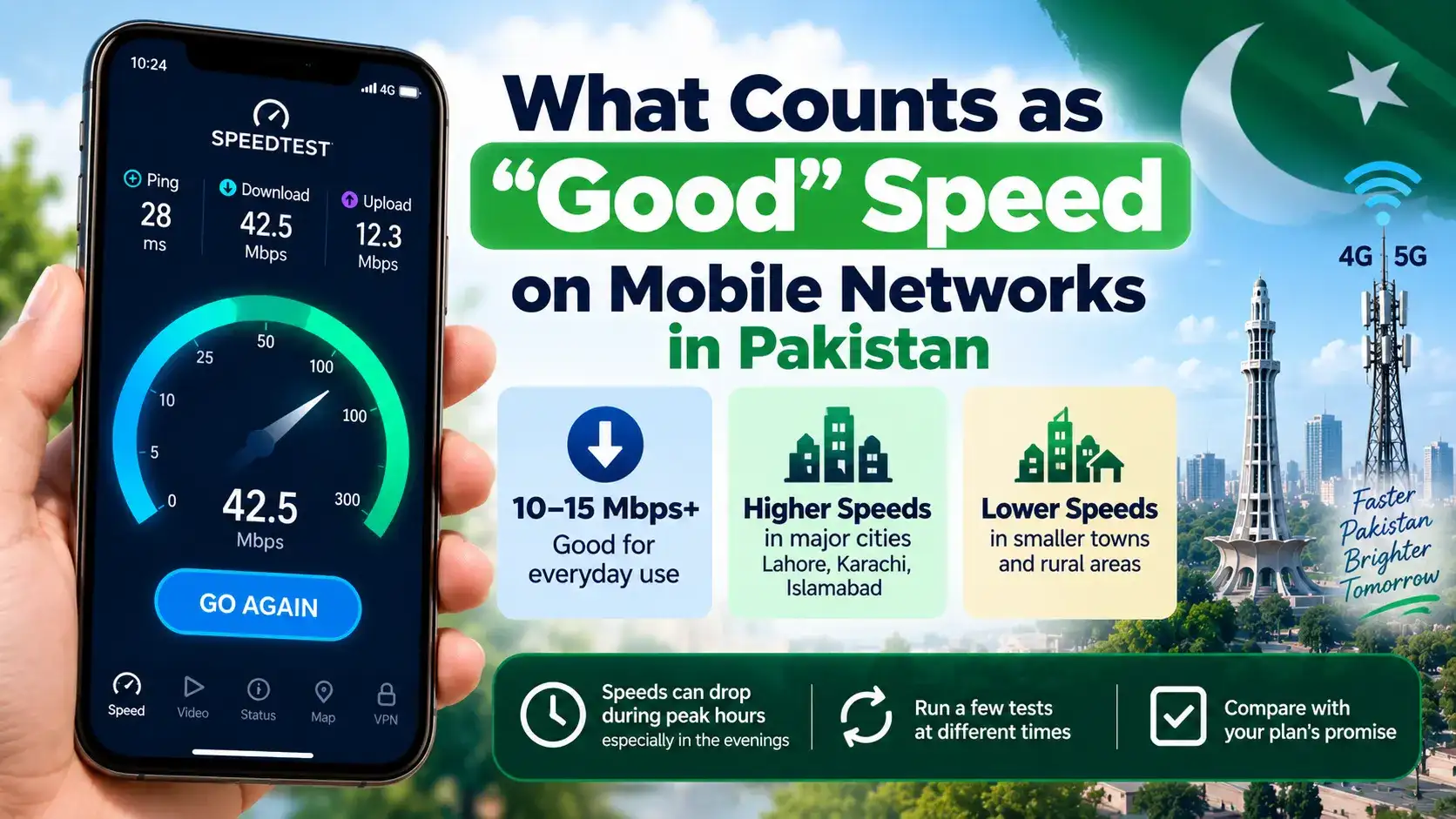
Speeds vary quite a bit depending on your operator, your city, and whether you're on 4G or a newer network technology, but as a general guide, anything above 10 to 15 Mbps download on mobile data is considered decent for everyday browsing, video calls, and standard definition streaming in most Pakistani cities. Speeds in major urban centers like Lahore, Karachi, and Islamabad tend to run noticeably higher than in smaller towns or rural areas, simply due to tower density and infrastructure investment. If your results consistently fall well below what your specific plan promises, it's worth running a few tests at different times of day before assuming there's a fault, since network congestion during peak hours (typically evenings) can genuinely bring speeds down even when everything is technically working fine.
What to Do If Your Speed Is Consistently Slow
If repeated tests keep showing speeds well below what you're paying for, restarting your phone and toggling airplane mode on and off can sometimes force a reconnection to a stronger tower. If that doesn't help, checking whether your specific area has any ongoing network maintenance or outage, usually announced on your operator's official social media, is worth a look before assuming the problem is on your end. If the issue continues across multiple days and locations, contacting your mobile operator's helpline with your speed test results in hand gives them something concrete to investigate rather than a vague complaint about "slow internet."
Frequently Asked Questions
What's the best app to check internet speed on mobile in Pakistan?
Speedtest by Ookla is the most widely used and reliable option, working consistently across Jazz, Zong, Telenor, Ufone, and WiFi connections.
What is a good download speed for mobile data in Pakistan?
Generally, 10 to 15 Mbps or higher is considered decent for everyday browsing and streaming, though this varies by city and network congestion.
Why is my upload speed lower than my download speed?
This is normal for most mobile and home internet connections, which are designed to prioritize download speed since most everyday activities involve receiving more data than sending it.
How can I tell if a slowdown is my WiFi or my mobile network?
Run a speed test on mobile data with WiFi off, then run it again connected to WiFi, and compare the two results to isolate where the issue is coming from.
What should I do if my internet speed is consistently below what I'm paying for?
Restart your phone, check for network maintenance announcements from your operator, and if the issue persists across several tests, contact your operator's helpline with your speed test results.
How Your Network Type Affects the Numbers You See
If your speed test results seem lower than you'd expect, it's worth checking what network type your phone is actually connected to, since this alone can explain a huge gap in performance. You can usually see this in your phone's status bar as a small 3G, 4G, or 5G label next to your signal bars. A connection sitting on 3G will show dramatically lower speeds than 4G, even in the same location with the same operator, since the underlying technology simply can't move data as fast. If you're seeing unexpectedly slow results, checking whether your phone has quietly dropped to a weaker network type, which can happen in areas with patchy coverage, is often the actual explanation rather than a genuine network wide slowdown.
Most Pakistani operators now run primarily on 4G/LTE in urban and semi urban areas, with 5G rolling out gradually in select cities as of 2026, so if your phone doesn't support 5G or you're outside a coverage zone for it, your device will simply connect via 4G instead, which is still perfectly capable of good everyday speeds. If you want to force your phone to prefer a specific network type, this setting is usually found under your phone's mobile network or SIM settings, though it's generally best left on automatic unless you have a specific reason to lock it to one type.
Checking your internet speed really only takes about 30 seconds once you have a reliable app like Speedtest or Fast.com on hand. Running a quick test whenever something feels off gives you real numbers to work with, instead of just guessing whether it's your phone, your network, or something else entirely.